STARTING AND OPERATING
Surround View Camera System — If Equipped
▸Contents: RAM 1500 Owner's Manual
Getting To Know Your Vehicle
- Keys
- Sentry Key
- Ignition Switch
- Remote Start — If Equipped
- Vehicle Security System — If Equipped
- Doors
- Steering Wheel
- Driver Memory Settings — If Equipped
- Seats
- Uconnect Voice Recognition — If Equipped
- Driver Adjustable Pedals — If Equipped
- Mirrors
- Exterior Lights
- Interior Lights
- Windshield Wipers And Washers
- Climate Controls
- Interior Storage And Equipment
- Windows
- Power Sunroof — If Equipped
- Hood
- Tailgate
- Pickup Box
- Rambox — If Equipped
- Tri-Fold Tonneau Cover — If Equipped
Getting To Know Your Instrument Panel
- Midline Instrument Cluster — Gasoline
- Highline Instrument Cluster — Gasoline
- Premium Instrument Cluster — Gasoline
- Midline Instrument Cluster — Diesel
- Highline Instrument Cluster — Diesel
- Premium Instrument Cluster — Diesel
- Instrument Cluster Display
- Warning Lights And Messages
- Onboard Diagnostic System — Obd Ii
Starting And Operating
- Starting The Engine
- Engine Block Heater — If Equipped
- Engine Break-In Recommendations — Gasoline Engine
- Parking Brake
- Automatic Transmission
- Four-Wheel Drive Operation — If Equipped
- Active-Level Four Corner Air Suspension System — If Equipped
- Active-Level Four Corner Air Suspension System (Off-Road Group) — If Equipped
- Axle Lock System — If Equipped
- Limited-Slip Differential — If Equipped
- Power Steering
- Fuel Saver Technology 5.7l Engines Only — If Equipped
- Stop/Start System — If Equipped
- Cruise Control Systems — If Equipped
- Parksense Front/Rear Park Assist System — If Equipped
- Parksense Active Park Assist System — If Equipped
- Lanesense — If Equipped
- Parkview Rear Back Up Camera
- Surround View Camera System — If Equipped
- Trailer Cameras — If Equipped
- Refueling The Vehicle — Gasoline Engine
- Vehicle Loading
- Trailer Towing
- Snowplow
- Recreational Towing (Behind Motorhome)
- Driving Tips
Customer Assistance
The Surround View Camera system allows you to see an on-screen image of the surroundings and the Top View of your vehicle. This occurs whenever the gear selector is in REVERSE or when enabled through the Uconnect system. The Top View of the vehicle will also show if any doors are open. The image will be displayed on the touchscreen along with a caution note “Check Entire Surroundings”. After five seconds, this note will disappear. The Surround View Camera system is comprised of four cameras located in the front grille, rear tailgate and side mirrors.
Removing the tailgate will disable the Rear View Camera function.
The Surround View Camera system has programmable settings that may be selected through the Uconnect system UCONNECT SETTINGS.
When the vehicle is shifted into REVERSE, the Rear View and Top View is the default view of the system.
If the camera delay is turned on, the camera image will display for up to 10 seconds after shifting out of REVERSE. The camera image will stop displaying, close, and display the previous screen if the vehicle speed exceeds 8 mph (13 km/h), the vehicle is shifted into PARK, or the ignition is placed in the OFF position. The touchscreen X button on the touchscreen disables the display of the camera image.
If the camera delay is turned off, the camera image will close and display the previous screen after shifting out of REVERSE.
If active guidelines are enabled, the lines are overlaid on the image in the Rear View and Top View to illustrate the width of the vehicle and its projected path based on steering wheel position.
The guidelines have different colored zones to indicate the distance an object in the view is from the rear of the vehicle. Refer to the following chart:
Zone |
Distance To The Rear Of The Vehicle |
Red |
0 - 1 ft (0 - 30 cm) |
Yellow |
1 ft - 6.5 ft (30 cm - 2 m) |
Green |
6.5 ft or greater (2 m or greater) |
Modes Of Operation
Standard Rear View can be manually activated by selecting “Back Up Camera” through the Controls menu within the Uconnect system.
Top View
The Top View will show in the Uconnect system with Rear View or Front View in a split screen display. There are integrated ParkSense arcs in the image at the front and rear of the vehicle. The arcs will change color from yellow to red corresponding the distance zones to the oncoming object.
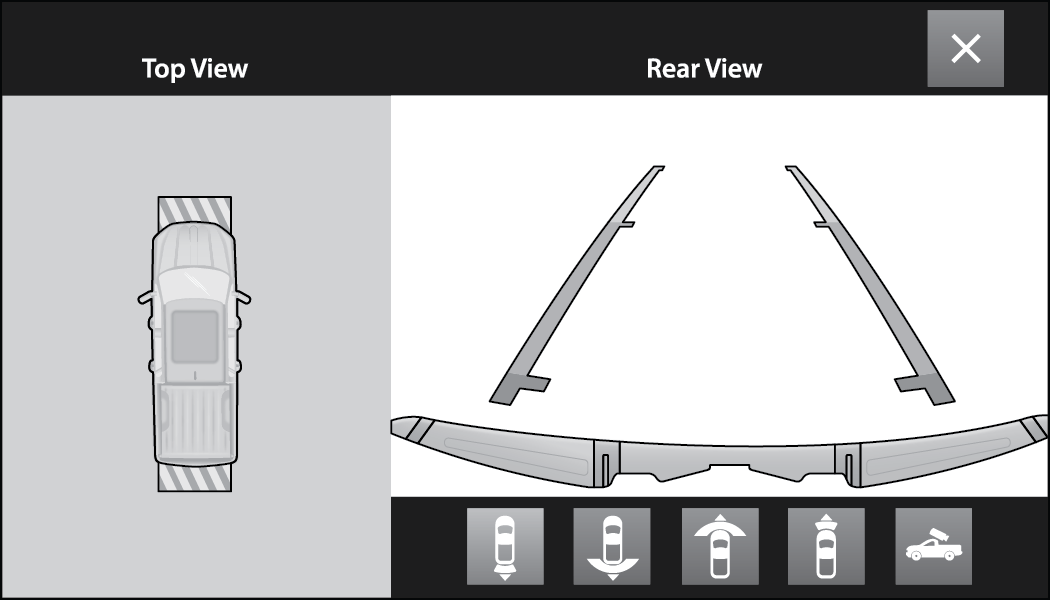
Surround View Camera View
Front tires will be seen in the image when the tires are turned.
Due to wide angle cameras in the mirrors, the image will appear distorted.
The Top View will show which doors are open.
Open front doors will block the outside image.
Top View Plus Rear View
Rear Cross Path View
Top View Plus Front View
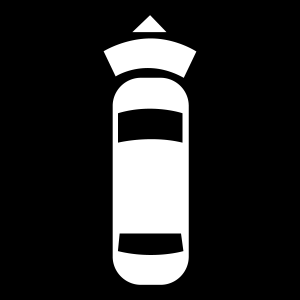
Front Cross Path View
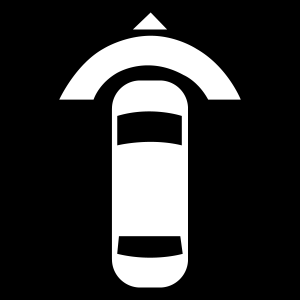
Back Up Camera View
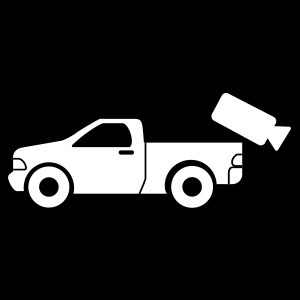
If the Back Up Camera was selected through the Surround View Camera menu, exiting out of screen display will return to the Surround View menu. If the Back Up Camera was manually activated through the Controls menu of the Uconnect system, exiting out of the display screen will return to the Controls menu.
When the Trailer Reverse Steering Control (TRSC) feature (if equipped) is activated, the following buttons on the touchscreen will be unavailable:
Back Up Camera
Front Facing Camera with Tire Lines
All Surround View Camera Views
Zoom View
When the Rear View Camera image is being displayed, and the vehicle speed is below 8 mph (13 km/h), Zoom View is available. By pressing the “magnifying glass” icon in the upper left of the display screen, the image will zoom in two times the standard view. Pressing the icon a second time will return the view to the standard Back Up Camera display.
When Zoom View is selected while the vehicle is in REVERSE, then shifted to DRIVE, the camera delay view will display the standard Back Up Camera view. If the vehicle is then returned to REVERSE gear from DRIVE, the Zoom View selection will automatically resume.
Shifting to NEUTRAL from any gear will maintain the selected view (Zoom or Standard) as long as the vehicle is below 8 mph (13 km/h).
If the vehicle is in PARK, Zoom View is available until the gear selector is placed in DRIVE or REVERSE and speeds are at or above 8 mph (13 km/h).
If the vehicle is in DRIVE, NEUTRAL, or REVERSE, and speed is greater than or equal to 8 mph (13 km/h), Zoom View is unavailable and the icon will appear grey.
While in Zoom View, the guidelines will not be visible.
Deactivation
The system is deactivated in the following conditions if it was activated automatically:
When the vehicle is shifted out of REVERSE with camera delay turned on, the camera image will continue to be displayed for up to 10 seconds after shifting out of REVERSE unless the vehicle speed exceeds 8 mph (13 km/h), the vehicle is shifted into PARK or the ignition is placed in the OFF position. There is a touchscreen X button to disable the display of the camera image.
When the vehicle is shifted out of REVERSE with camera delay turned off, the Surround View Camera mode is exited and the last known screen appears again.
The system is deactivated in the following conditions if it was activated manually from the Uconnect controls menu via Surround View button or Back Up Camera button:
The touchscreen X button is pressed
Vehicle is shifted into PARK
Ignition is placed in the OFF position
Vehicle speed is over 8 mph (13 km/h) for 10 seconds
If the Surround View Camera is activated manually, and the vehicle is shifted into REVERSE, deactivation methods for automatic activation are assumed.
The camera delay system is turned off manually through the Uconnect settings menu UCONNECT SETTINGS.
If snow, ice, mud, or any foreign substance builds up on the camera lenses, clean the lenses, rinse with water, and dry with a soft cloth. Do not cover the lenses.
If a malfunction with the system has occurred, see an authorized dealer.
Drivers must be careful when backing up even when using the Surround View Camera. Always check carefully behind your vehicle, and be sure to check for pedestrians, animals, other vehicles, obstructions, or blind spots before backing up. You are responsible for the safety of your surroundings and must continue to pay attention while backing up. Failure to do so can result in serious injury or death.
To avoid vehicle damage, Surround View should only be used as a parking aid. The Surround View camera is unable to view every obstacle or object in your drive path.
To avoid vehicle damage, the vehicle must be driven slowly when using Surround View to be able to stop in time when an obstacle is seen. It is recommended that the driver look frequently over his/her shoulder when using Surround View.
For information on Auxiliary Cameras (if equipped), see AUX Camera — If Equipped.